Prerequisites
Before starting, ensure you have:
-
Clockspring configured with SSL per the Clockspring SSL Setup Guide
-
The Clockspring hostname resolves correctly in DNS
-
An Azure AD account with Application Administrator rights (or equivalent for your IdP)
-
The username of at least one user who will be the initial admin
| Clockspring only allows one multi-user authentication method at a time. Configuring SAML will override any previous multi-user configuration. |
| This guide uses Azure AD as the identity provider (IdP). For other IdPs, the core concepts apply but specific steps will differ. Work with your authentication team as needed. |
Step 1: Create Azure Enterprise Application
-
Login to https://portal.azure.com
-
Search for "Enterprise Applications"
-
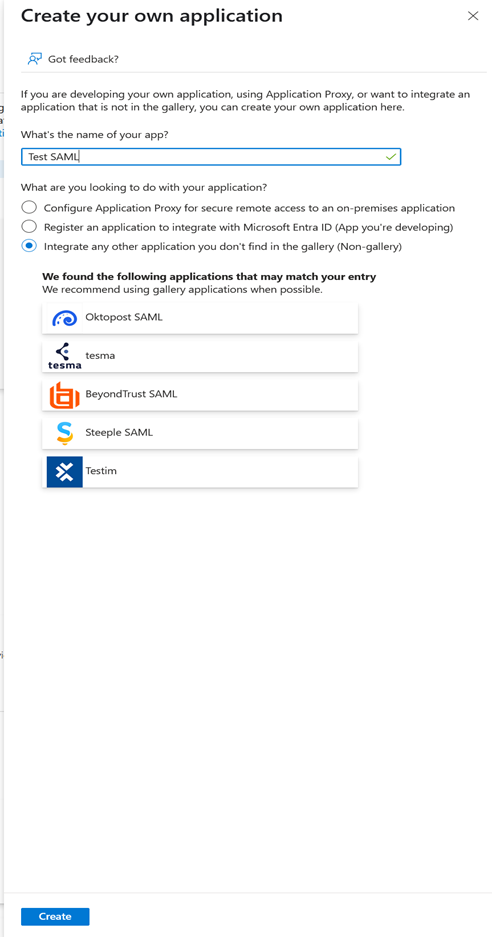
Click New Application → Create your own application
-
Name the application (e.g., "Clockspring SAML") and select "Integrate any other application you don’t find in the gallery (Non-gallery)"
-
Click Create
Step 2: Configure SAML Single Sign-On
-
In the application, go to Manage → Single sign-on → SAML
-
In Basic SAML Configuration, click Edit and configure:
| Setting | Value |
|---|---|
Identifier (Entity ID) |
Choose a unique name (e.g., |
Reply URL |
|
Sign-on URL |
|
Logout URL |
-
Click Save

Step 3: Configure User Claims
Claims are key/value pairs sent from Azure to Clockspring via the SAML token. Clockspring uses the unique user identifier to determine the username.
-
Click Edit next to Attributes & Claims
-
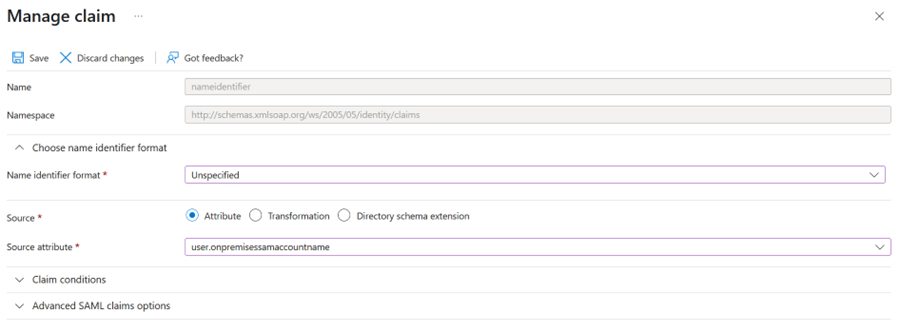
Click on Unique User Identifier (Name ID)
-
Set the Source attribute based on your desired username format:
| Source Attribute | Username Format |
|---|---|
|
Email address (e.g., |
|
UPN format (e.g., |
|
Windows login name (e.g., |
-
Click Save
-
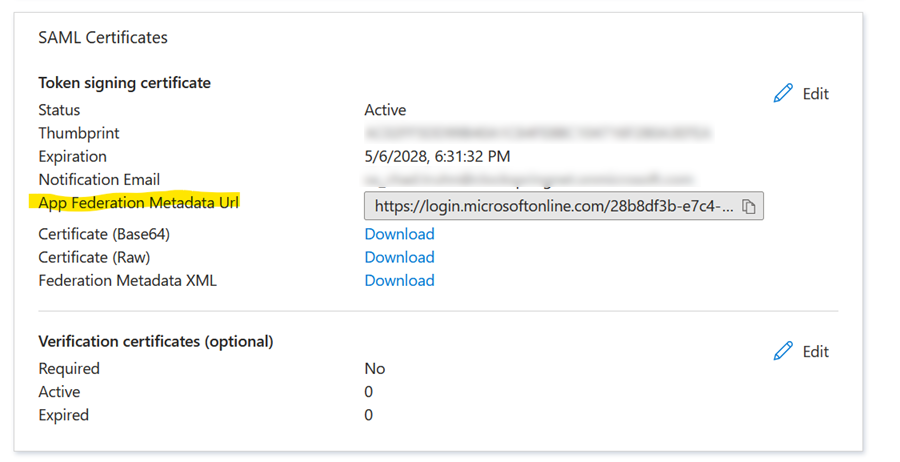
Copy the App Federation Metadata URL from the SAML Certificates section. You’ll need this for Clockspring configuration.
Step 4: Assign Users or Groups
By default, Azure requires explicit user/group assignment before users can authenticate.
-
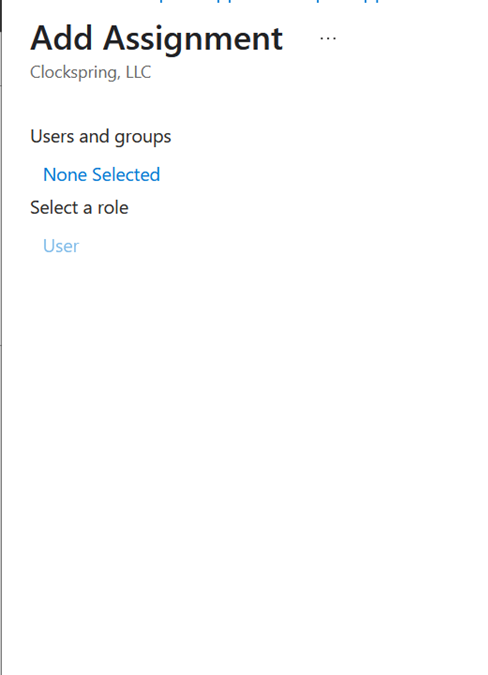
Go to Users and groups → Add user/group
-
Click None Selected under Users
-
Select the users or groups that should have access to Clockspring
-
Click Assign
Step 5: Configure Clockspring
Edit /opt/clockspring/conf/clockspring.properties:
vi /opt/clockspring/conf/clockspring.properties
Set the following properties:
nifi.security.user.authorizer=managed-authorizer
nifi.security.user.login.identity.provider=

nifi.security.user.saml.idp.metadata.url=https://login.microsoftonline.com/<tenant-id>/federationmetadata/saml
nifi.security.user.saml.sp.entity.id=clockspring-saml
nifi.security.user.saml.group.attribute.name=groups
Replace:
-
<tenant-id>with the metadata URL you copied from Azure -
clockspring-samlwith the Entity ID you configured in Azure
Step 6: Configure Initial Admin Users
Edit /opt/clockspring/conf/authorizers.xml:
vi /opt/clockspring/conf/authorizers.xml
Add your initial users to the file-user-group-provider section:
<userGroupProvider>
    <identifier>file-user-group-provider</identifier>
    <class>org.apache.nifi.authorization.FileUserGroupProvider</class>
    <property name="Users File">./conf/users.xml</property>
    <property name="Initial User Identity 1">john.smith</property>
    <property name="Initial User Identity 2">jane.doe</property>
</userGroupProvider>
Set the initial admin in the file-access-policy-provider section:
<accessPolicyProvider>
    <identifier>file-access-policy-provider</identifier>
    <class>org.apache.nifi.authorization.FileAccessPolicyProvider</class>
    <property name="User Group Provider">file-user-group-provider</property>
    <property name="Authorizations File">./conf/authorizations.xml</property>
    <property name="Initial Admin Identity">john.smith</property>
</accessPolicyProvider>
| The usernames must match exactly what the IdP returns. Check the claim configuration in Step 3 to determine the format. |
Step 7: Apply Changes
Remove the old authorization files so Clockspring rebuilds them with the new settings:
rm /opt/clockspring/conf/users.xml /opt/clockspring/conf/authorizations.xml
Restart Clockspring:
sudo systemctl restart clockspring
Step 8: Verify Login
Navigate to https://<clockspring_host>:8443/canvas. You should be redirected to Azure AD for login.
Troubleshooting
Redirect loop or "AADSTS50011" error
The Reply URL in Azure doesn’t match what Clockspring expects. Verify:
-
The Reply URL is exactly:
https://<clockspring-host>:8443/nifi-api/access/saml/login/consumer -
There are no trailing slashes
-
The hostname matches exactly (including case)
"User not found" or no permissions after login
The username from Azure doesn’t match the Initial Admin Identity:
-
Check
logs/application.logfor the actual username being received -
Look for lines containing "identity" to see the exact format
-
Update
authorizers.xmlto match that format -
Delete
users.xmlandauthorizations.xml, then restart
"SAML response is not valid" error
-
Check that the Clockspring server’s clock is synchronized (SAML tokens are time-sensitive)
-
Verify the Entity ID in Clockspring matches what’s configured in Azure
-
Ensure the metadata URL is accessible from the Clockspring server
User can log in but has no permissions
This is different from "user not found" - the user is recognized but lacks access:
-
Log into Clockspring as the initial admin
-
Go to the hamburger menu → Policies
-
Grant the user appropriate access to the canvas and components
Testing SAML configuration
You can test the SAML configuration without restarting by checking if Clockspring can fetch the IdP metadata:
curl -k "https://login.microsoftonline.com/<tenant-id>/federationmetadata/2007-06/federationmetadata.xml"
If this fails, there may be a network or firewall issue preventing Clockspring from reaching Azure.
SAML Property Reference
| Property | Description |
|---|---|
|
URL to the IdP’s SAML metadata (required) |
|
Unique identifier for Clockspring as a Service Provider (must match IdP configuration) |
|
Name of the SAML attribute containing group memberships |
|
Override the SAML attribute used for user identity (default: NameID) |
|
Enable SAML Single Logout ( |
|
Sign SAML authentication requests ( |
|
Require signed SAML assertions ( |
|
How long sessions last (e.g., |